Tutorial 4 of 7
Delivery checks and A/B variants
Intermediate 8 min
Check every output against platform specs like vertical shorts, Discord uploads or podcast loudness, and compare two recipes side by side to keep the variant that fits.
Delivery checks
Open Checks and press Add check. Pick a spec and what it applies to: all files, originals, outputs or the outputs of one recipe. Reelcraft compares what it knows about each file — size, duration, resolution, aspect ratio, format, loudness, true peak, GPS location, reading speed of captions — with the spec and shows Pass, Fail, Warning or Not measured.
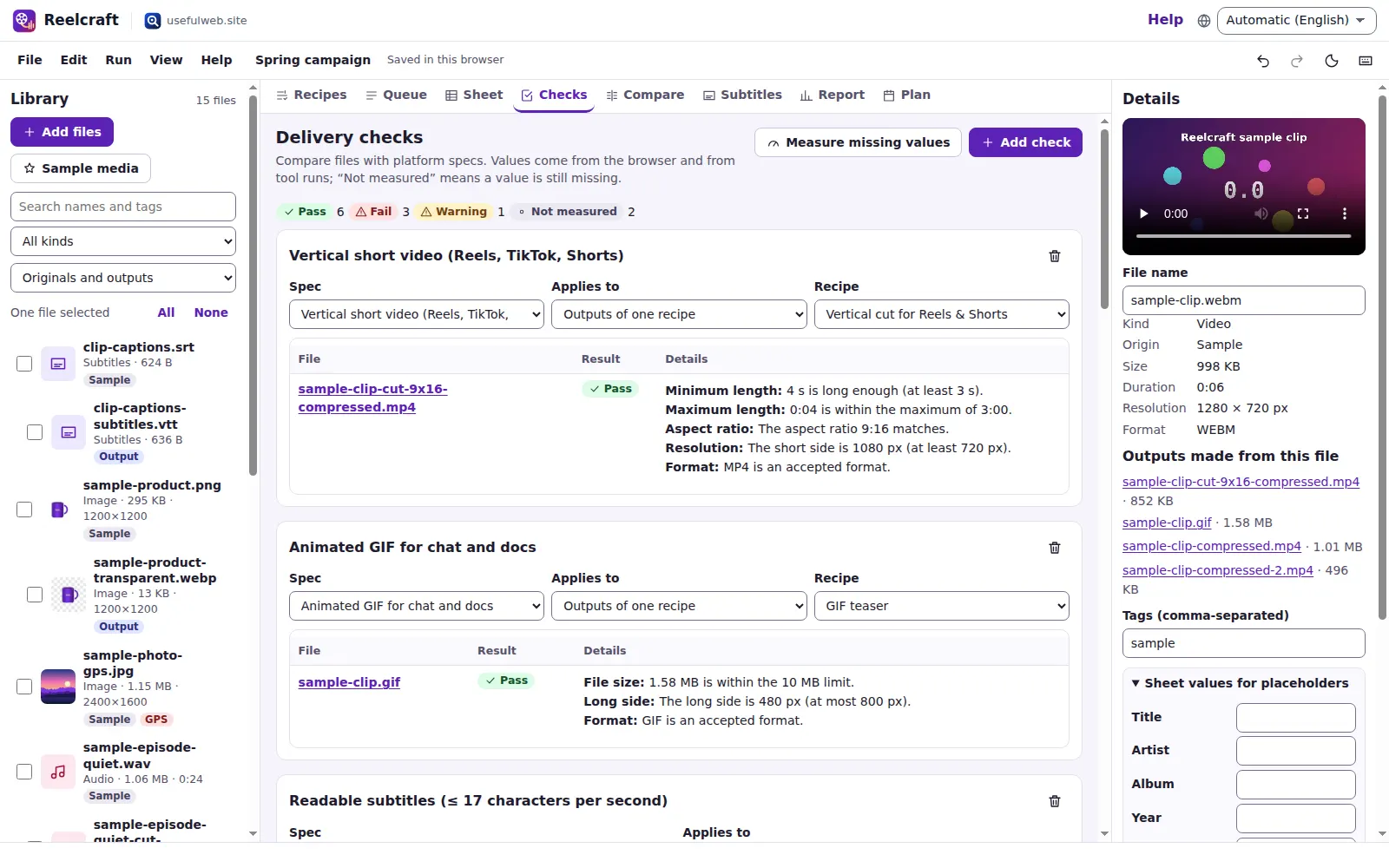
The built-in presets are starting points based on commonly published limits (for example 9:16 and at least 720 px for vertical shorts, 10 MB for Discord, −16 LUFS for podcasts). Platforms change their rules — check the current limits of your platform and adjust them with Create custom spec. Sizes use decimal megabytes (1 MB = 1 000 000 bytes), like the media tools.
Not measured means a value is unknown, for example the loudness of a file that never went through the loudness tool. Measure missing values runs the analysing tools (loudness, EXIF, Content Credentials) only where they are needed.
A/B variants
Is a size-targeted encode better than a quality-based one for your clip? Open Compare, choose recipe A and recipe B of the same kind, select files in the library and press Run A and B. Both runs are queued as a pair.
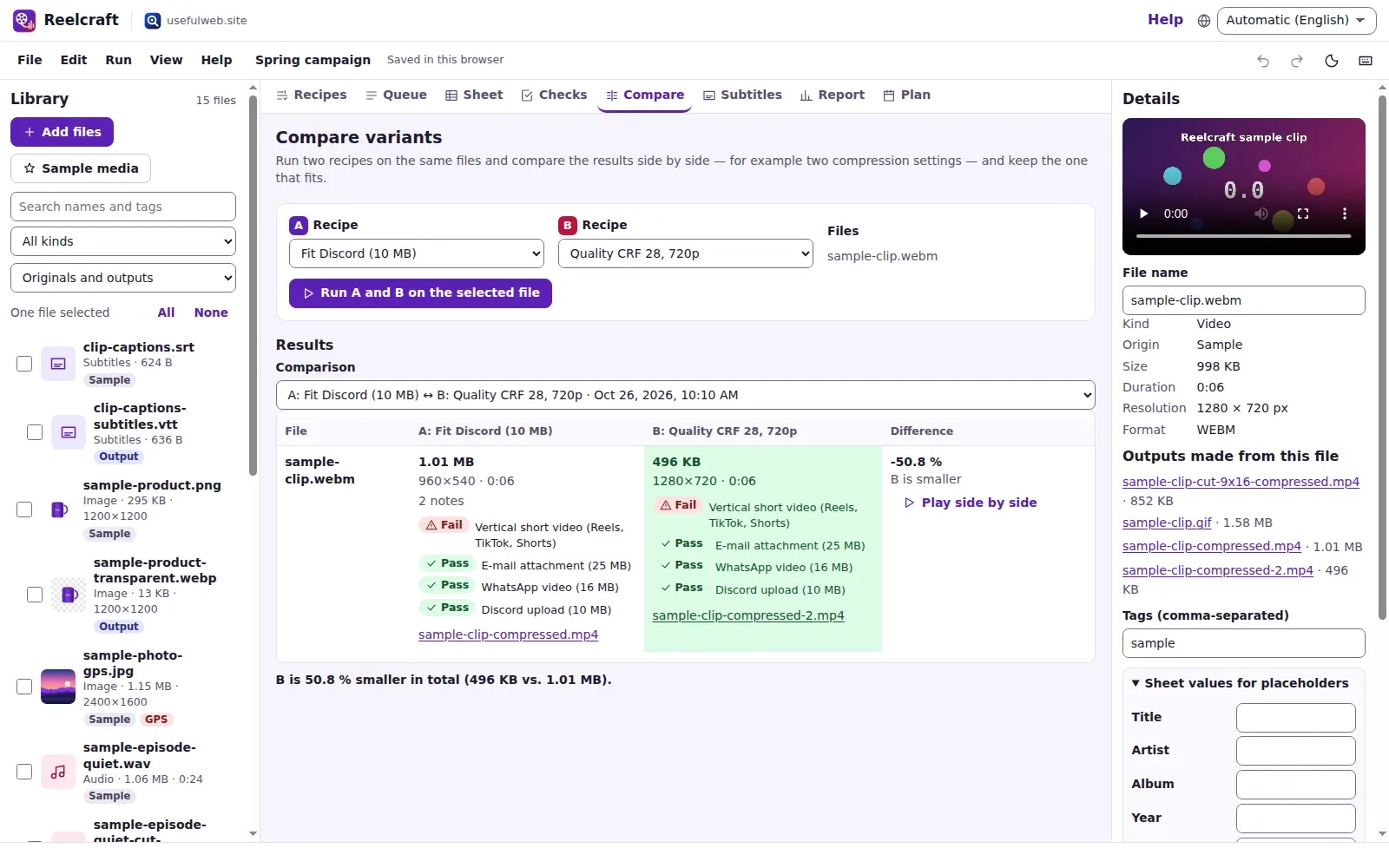
The comparison table shows, per file, the size, resolution, duration and loudness of both results, which specs each one passes, and the difference in percent. The smaller result is highlighted. Play side by side opens both outputs next to each other so you can judge the quality yourself.
Earlier pairs stay available under Results, so you can compare variants over time.
Ready to try it?